Read Pulse, Activity, and Undo
See what needs attention, inspect the complete Card history, reverse supported actions, and restore removed work safely.
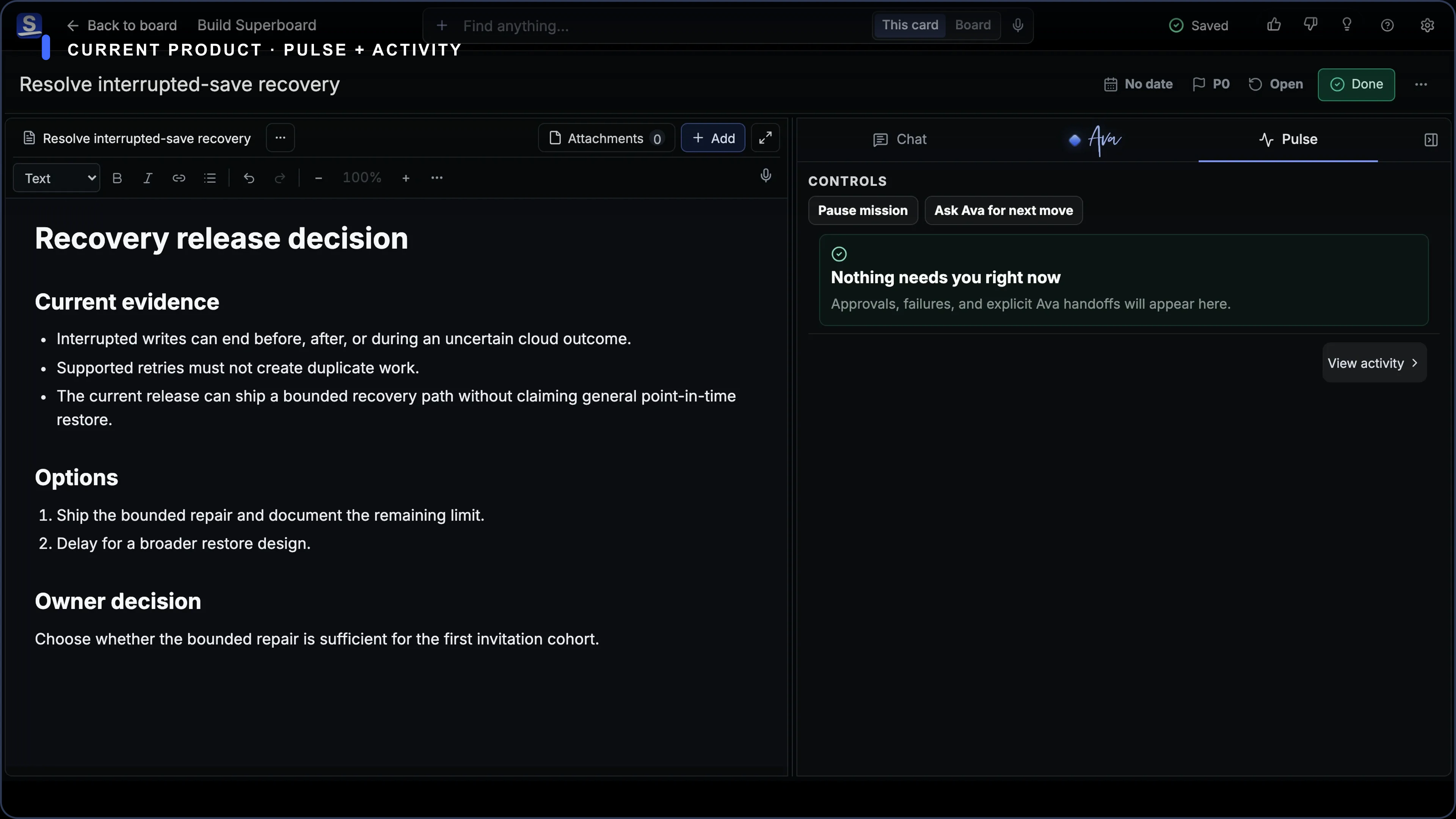
Pulse and Activity answer different questions inside a Card Room.
The shortest distinction: Pulse is now; Activity is history.
| Surface | Question it answers | What it contains |
|---|---|---|
| Pulse | What matters now? | Current state, items that need the Owner, and recent meaningful changes. |
| Activity | What happened? | The complete attributed chronological Card record, including the outcome of past recovery attempts. |
Pulse is the focused current view. Activity is the complete attributed chronological record. Pulse does not replace Activity or erase older history.
Read Card Pulse
Open a Card and choose Pulse. Start here when you need the current state, the next move, a decision that needs you, or a recent change worth reviewing.
Pulse can include Ava actions, failed work that needs attention, and a recovery copy. Each item keeps its actor and outcome connected to the Card.
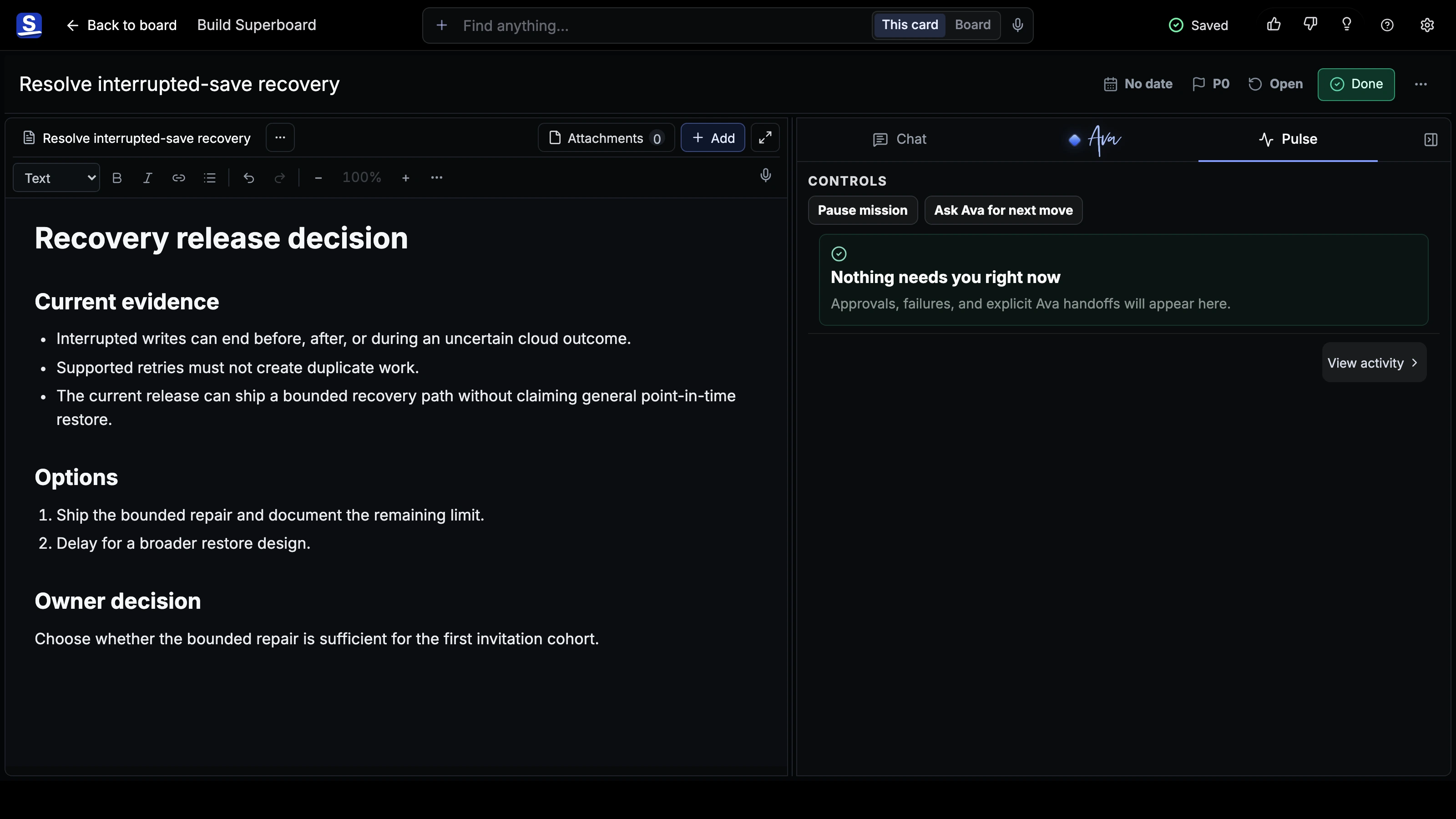
Choose View Activity when you need the full record behind the summary.
Inspect Activity
From Pulse, open Activity. The drilldown is labeled Complete Card history and recovery.
Activity preserves chronological events rather than only the latest state. Use it to answer:
- who changed the Card;
- what Ava changed;
- when a move, edit, status change, or Stage mutation happened;
- whether a past recovery action succeeded, failed, expired, or became unsafe.
Activity is evidence, not a second place to edit the Card. Run recovery from the exact control Superboard shows: Undo, Removed Items, Pulse, or a recovery notice.
Undo the latest supported action
Use the visible Undo control or press Cmd/Ctrl+Z. Undo is bounded recent history, not permanent version history.
An action is undoable only when Superboard has the information and authority to reverse it safely. Examples include supported Board changes, Ava mutations, moves, and a checklist step that has just become an unchanged child Card.
If newer work changes the target, Superboard can refuse the Undo. That refusal protects the newer work; it does not mean Activity lost the original event.
When Cmd/Ctrl+Z shows Nothing to undo, no general Undo is available for the current action history. Look for a surface-specific Restore path instead.
Restore removed work
Removing a Card or List sends it to Removed Items. A removed Board also appears there for its Owner.
- Open Removed Items from Board navigation or Settings.
- Find the Card, List, or Board.
- Choose Restore.
A Card returns to its original active List when possible. If that List no longer exists, Superboard uses another active List and tells you where the Card went. Restoring a List also restores recoverable Cards removed with it.
Archived Trello Cards and Cards from archived Trello Lists also live in Removed Items after import.
Understand permanent deletion
Permanent deletion is separate from removal. Superboard asks for confirmation because permanent deletion cannot be undone. Do not use it as a cleanup shortcut while a save, import, or recovery issue is unresolved.
What recovery does not provide
Superboard does not provide a general control that rolls any active Card or whole Board back to an arbitrary date. A locally preserved conflict copy protects work after a save conflict, but it is not full version history.
For detailed restore behavior and conflict copies, read Undo, Removed Items, and Recovery.
Contact Superboard directly
During early access, email the founder directly for product, account, privacy, or data help.
Use Card Chat and Ask Ava
Keep the shared Card record, format messages, attach files, and invoke Ava without confusing current Chat with future private Ava work.
Search, Use Shortcuts, and Switch Boards
Find exact Board material, open a result, navigate by keyboard, and move between life and work Boards.