Work in a Card's Stage
Create, organize, edit, and recover Documents, Checklists, images, and files in a Card's Stage.
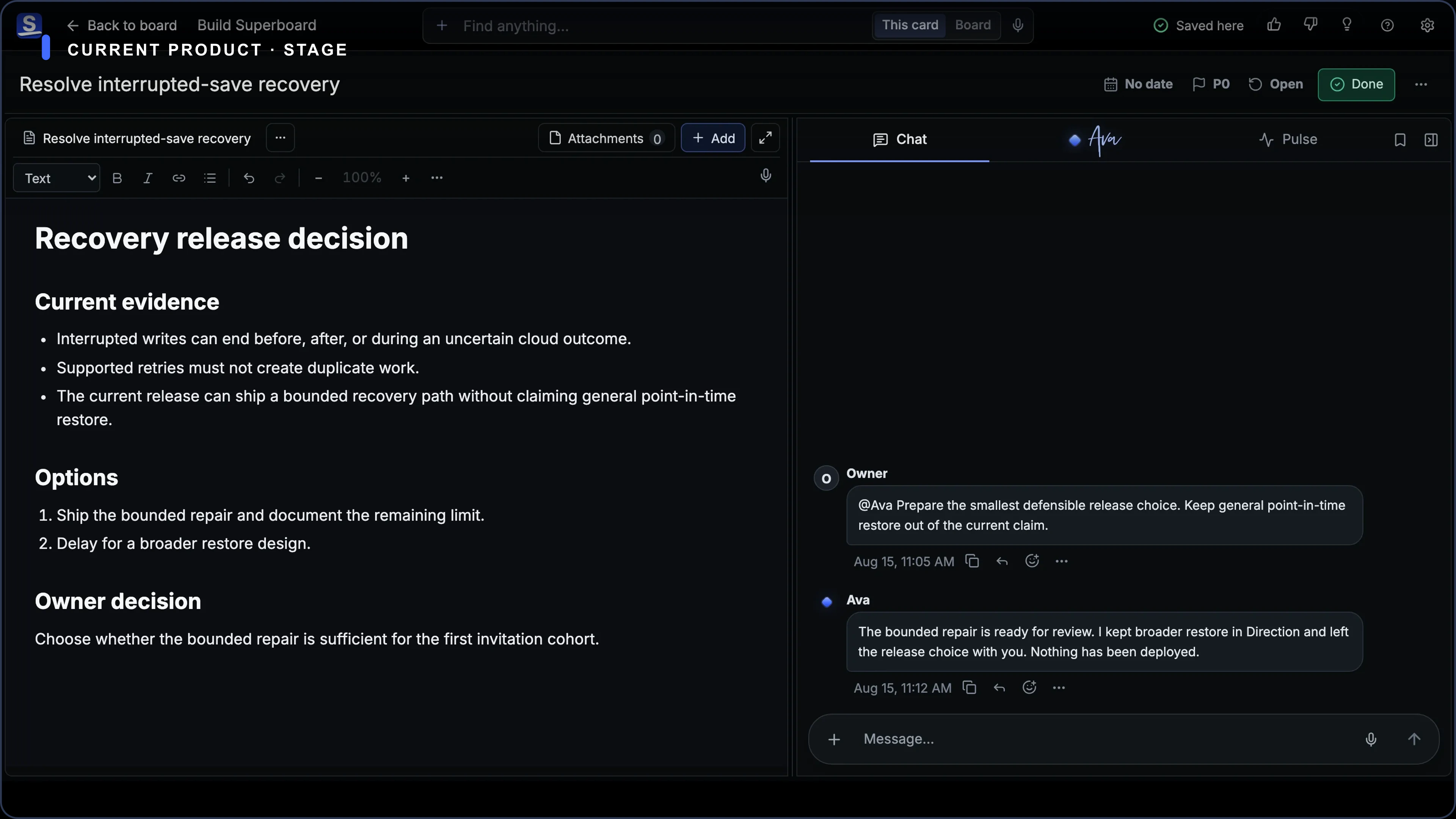
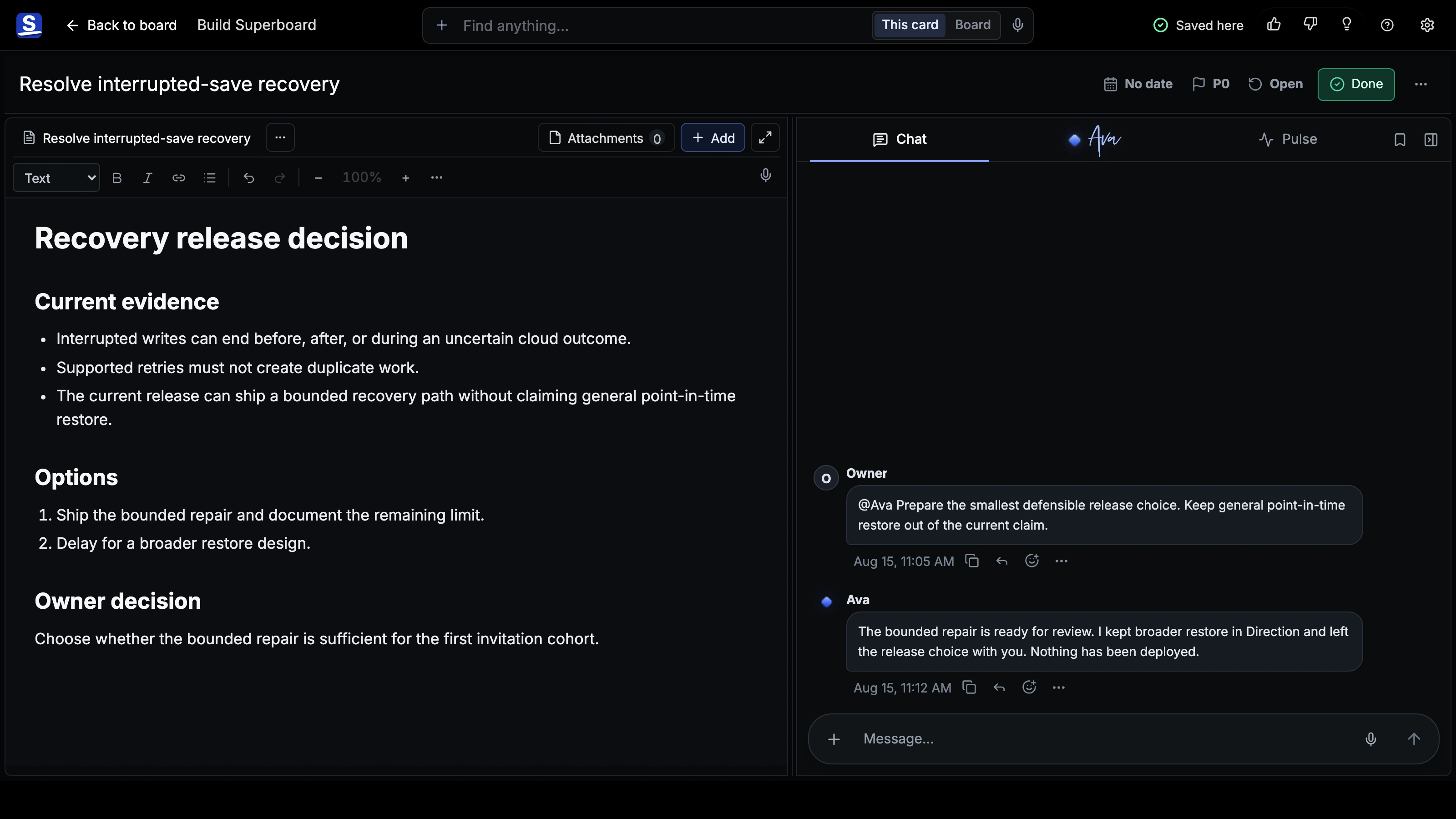
The Stage is the working surface inside a Card Room. Use it for the material the Card is producing: a document, a checklist, a set of images, a reference file, or several artifacts kept in a deliberate order.
Opening an empty Card does not create an artifact. You decide what belongs on the Stage.
Start an empty Stage
- Open a Card.
- In Stage, choose Document or Checklist under Start the Stage.
- To bring in existing material instead, use Bring something in and choose Image or photo or File.
You can also paste text or drop supported files anywhere on an empty Stage. Paste and drop are direct creation paths and use the same verified attachment pipeline as Card Chat.
| Starting point | Use it for | What happens |
|---|---|---|
| Document | Notes, drafts, decisions, briefs, and long-form work | Superboard creates an editable native document. |
| Checklist | A visible sequence of steps | Superboard creates a native checklist. |
| Image or photo | Screenshots, references, and visual work | Superboard creates an image gallery. |
| File | Documents, data, code, audio, video, and other supported references | Superboard adds a file artifact and keeps it in the Card's attachment inventory. |
Add another artifact
When the Stage already has work, choose Add in the Stage toolbar. Add a Document, Checklist, image gallery, or File without replacing the current artifact.
The artifact name at the top of the Stage shows which artifact is open. When a Stage has more than one artifact, choose that name to open the artifact list and switch. Superboard remembers the last selected artifact on this device.
Rename, order, remove, or restore an artifact
Open the current artifact's ... menu. The available actions are:
- Rename
- Move up
- Move down
- Remove from Stage
The order in the artifact list is the Stage order. Moving an artifact does not change the order of Cards on the Board.
If other artifacts remain active, removed Stage artifacts are restorable from Add. Choose Restore artifact name to return one to the Stage. If removal leaves the Stage empty, use the visible Restore artifact name control on the empty Stage.
Write in a Document
Choose a Document and edit it directly on the Stage. Superboard saves document work locally while cloud saving completes. If the cloud save is delayed, keep the Card open and follow the sync message shown by the product.
Native Stage Documents have a 1 MB source limit. When you add a .md or .txt file larger than 1 MB, Superboard keeps it as a File instead of converting it into a native Document.
Build a Checklist
Choose Checklist, then use Add an item. You can paste a multiline list into the item field to create several steps at once.
Current checklist controls include:
- flat sections that you can add, rename, reorder, collapse, or remove;
- draggable steps that you can reorder or move between sections;
- Hide completed after at least one step is complete;
- one date-only Target and one private plain-text Note per step;
- overdue, today, and next-target cues;
- Mark card complete after every active checklist step is complete.
Checklists do not currently support nested steps, per-step assignees, time-of-day scheduling, or date ranges.
Turn a checklist step into a Card
Use Turn into card when a step needs its own people, Dates, Chat, files, or Stage.
- Open the step.
- Choose Turn into card.
- Confirm Turn into card.
By default, the new Card appears immediately after the source Card.
The step's Target becomes the new Card's Dates. Its Note becomes a Context Document. Superboard removes the checklist step only after the Card is safely created.
Undo is guarded: it restores the step and removes the child Card only while that child Card is still unchanged. If later work makes that reversal unsafe, Superboard refuses the Undo instead of deleting newer work.
Add and open files
Use Add, Attachments, the file picker, paste, or drop. Superboard accepts verified images, PDFs, text and code, modern office files, fonts, audio, and video.
- Images appear inline.
- Supported audio and video use an authenticated player.
- Other supported files provide a safe download.
.mdand.txtfiles up to 1 MB can become native Documents.- Unsupported, executable, archive, macro-enabled, and legacy office formats are blocked.
A single add batch accepts up to 10 files and 500 MB total. Per-file limits vary by type: images up to 20 MB, text and code up to 10 MB, PDFs and modern office files up to 50 MB, fonts up to 25 MB, audio up to 100 MB, and supported video up to 250 MB.
For wider recovery paths, read Undo, Removed Items, and Recovery.
Contact Superboard directly
During early access, email the founder directly for product, account, privacy, or data help.