Search, Use Shortcuts, and Switch Boards
Find exact Board material, open a result, navigate by keyboard, and move between life and work Boards.
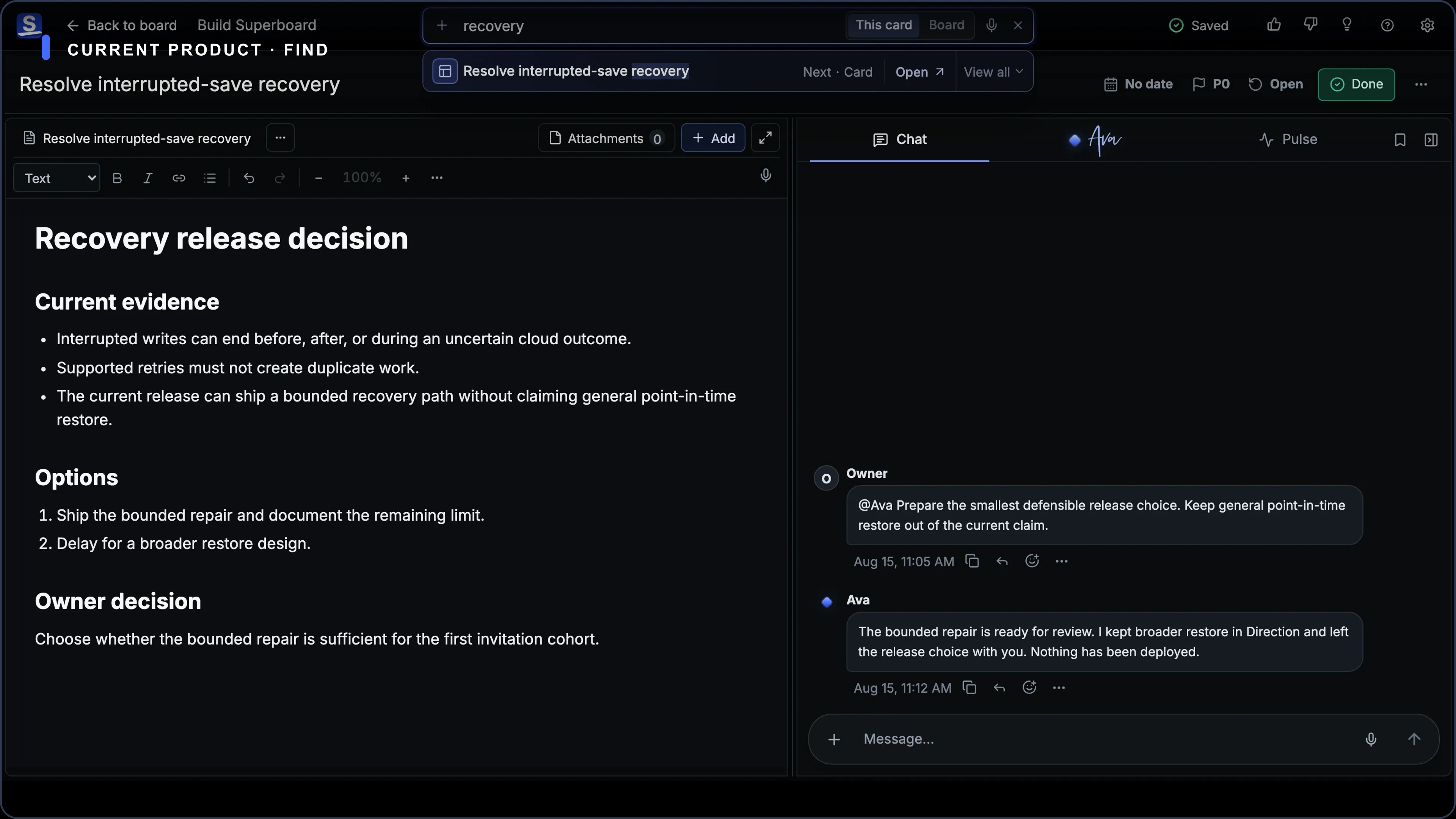
Board search finds known words and phrases inside the current Board. It filters Cards without changing their List or Card order.
When a Card Room is open, the Find control starts with This card selected. Use the visible This card / Board switch to search only the open Card or the whole current Board. On the Board surface, Find searches the Board.
Search the current Board
Press Cmd+F on macOS or Ctrl+F on Windows and Linux to focus Find in the current view, then type a query. From a Board, it searches that Board. From a Card Room, it focuses Card Find with This card selected; switch to Board when you want the whole Board instead.
Pressing / also focuses the visible Find control.
Search is case-insensitive and supports partial matches across:
- Card titles;
- Chat comments;
- attachment names;
- assignees;
- enabled priority labels;
- labels;
- due dates;
- Guide reads;
- links;
- Trello and other import metadata.
Results use field-aware lexical ranking. Exact title and phrase matches can rank ahead of looser token, artifact, body-content, and legacy-import matches. Approved work-language aliases such as nav and navigation, auth and authentication, and spec and specification match in both directions.
Priority aliases match complete query tokens rather than partial words. General text fields still support partial matches.
Use the arrow keys to select a result and press Enter to open its Card. When a result points to a Stage artifact, attachment, or Chat message, Superboard opens the Card at that destination when the result supports it.
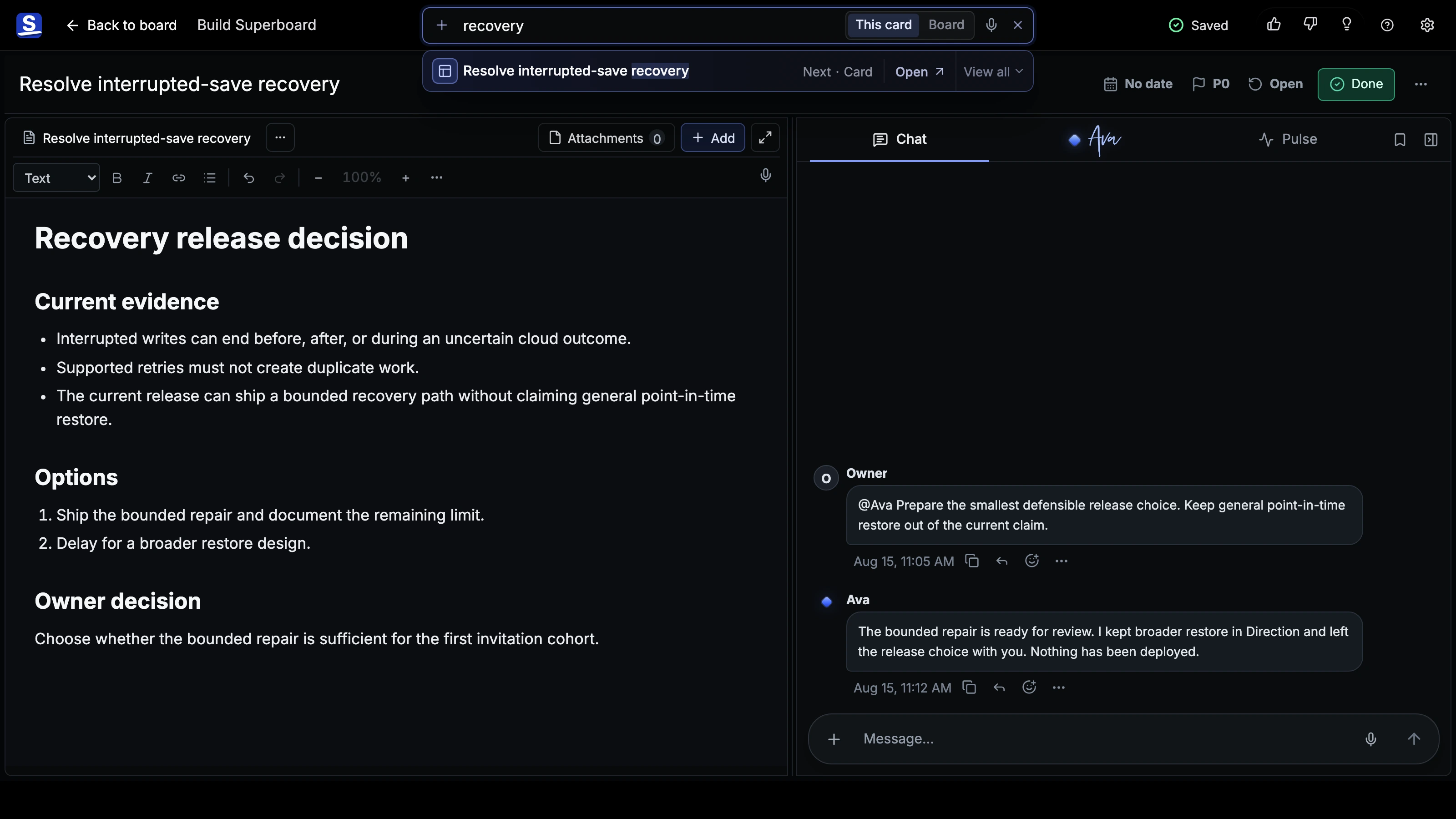
Clearing the query returns every Card to its existing List position.
Know the search boundary
Current Board search is lexical and indexed. It does not use vector memory or a general AI memory browser. It finds terms, phrases, supported aliases, and indexed fields; it does not infer every conceptual relationship from a vague question.
Search does not move, edit, label, or otherwise mutate Cards. Opening a result is navigation only.
Model-backed related retrieval is not a generally available search mode. Semantic search remains future Guide and backend work.
Use Board keyboard shortcuts
Press ? at any time on the Board to open the shortcut guide.
| Shortcut | Action |
|---|---|
/ | Focus the visible Find control. |
Cmd/Ctrl+F | Find in the current Card or Board. |
Cmd/Ctrl+Shift+O | Focus The Guide input. |
n | Start a new Card in the focused List. |
j / k | Move Card focus down or up. |
h / l | Move Card focus left or right. |
Enter | Open the focused Card or selected search result. |
Esc | Return to the Board or close the current top-level view. |
Cmd/Ctrl+Enter | Post the current Card Chat message. |
Cmd/Ctrl+Z | Undo the latest supported action. |
? | Open the shortcut guide. |
Shortcuts that type a plain character do not take over while you are writing in an input or editor.
Switch Boards
Open the Boards hub to see your signed-in cloud Boards. Choose a Board to open it. From the hub you can also create or remove a Board; removed Boards remain recoverable in Removed Items for their Owner until permanently deleted.
Use separate Boards when a mission needs its own durable home. That applies to life and work: a move, renovation, family plan, product release, client engagement, or creative project can each have a Board without forcing every concern into one universal queue.
Search stays scoped to the Board you have open. It does not return one combined result set across every Board.
Contact Superboard directly
During early access, email the founder directly for product, account, privacy, or data help.
Read Pulse, Activity, and Undo
See what needs attention, inspect the complete Card history, reverse supported actions, and restore removed work safely.
Undo, Removed Items, and Recovery
Reverse supported actions, restore removed Cards, Lists, or Boards, and understand Superboard's current recovery limits.